Requests for new developments in AGIR must be submitted through the ticket system, on IQA's Helpdesk Portal.
For the development to be analyzed and planned effectively, it is essential that the request is described with the maximum possible detail.
IMPORTANT Only users with an account on the Helpdesk Portal can submit requests.
If you do not yet have an account, consult the tutorial How to create a ticket? and see the "I don't have an account" section at the end.
Best practices for development requests
When submitting a request for new development, make sure you include the following information:
1. Objective of the development
Explain, clearly and concisely, what you want AGIR to do and what problem or need you are trying to solve.
Example: “We intend to automate the sending of email notifications whenever an action plan reaches the deadline set in the field “Expected completion date”
2. Context
Describe the current scenario, including:
Where the situation occurs (in which module, record, process or report);
What the current workflow is and why it needs to be adjusted.
Example: “Currently, those responsible for action plans only realize that the deadline is approaching (or has been missed) when they manually review the records. This has led to delays and the need to reopen tasks.
It would be useful for the system to send an automatic alert to remind the responsible person before the deadline ends.”
3. Desired functionality
Indicate exactly what you wish to be implemented. Be as specific as possible. You can include:
New fields (with names, field type, and where they should appear);
Validation or calculation rules;
Adjustments to approval flows;
Changes in reports or charts;
Expected behaviors for each situation.
Example:
The system must automatically send an email to the person responsible for the task 3 days before the deadline set in the “Expected completion date” field;
The email should include the name of the task, the deadline and the direct link to the record;
If the task is not completed by the deadline, a new notice should be sent indicating that the task is overdue;
- Notifications should be sent to the email address associated with the user responsible for the task.
4. Examples and attachments
Whenever possible, include:
Illustrative images or videos;
Screenshots with annotations;
Supporting documents, such as flowcharts or internal descriptions.
Example:
- "Attached is a screenshot of a real action plan, with the relevant field highlighted."
- "Also attached is an example email with the suggested text for the notification"
5. Impact and priority
Explain the importance of this change for your organization:
Is it urgent or can it be planned in the medium term?
Will it be used by many users?
Is it preventing the operation of a critical process?
Request submission
After gathering all this information, you should submit the request on the Helpdesk Portal. If you need more detailed steps, you can follow the steps in the tutorial How to create a ticket?
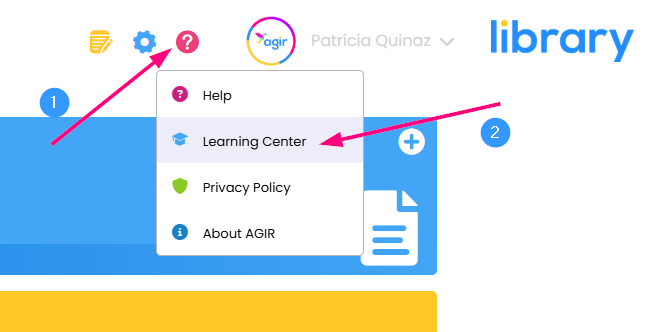
1. Go to the Helpdesk Portal or, in AGIR, click Help in the top right corner and then Learning Center.
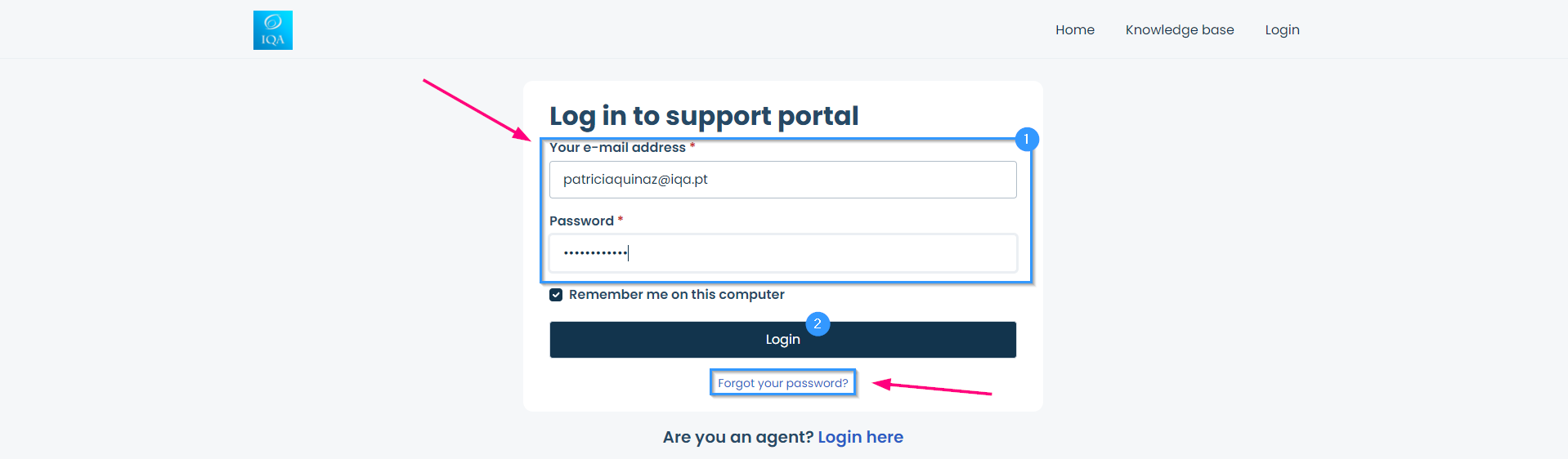
2. Log in with your credentials.
TIP If you don't remember your password, you can recover it by selecting Forgot your password?
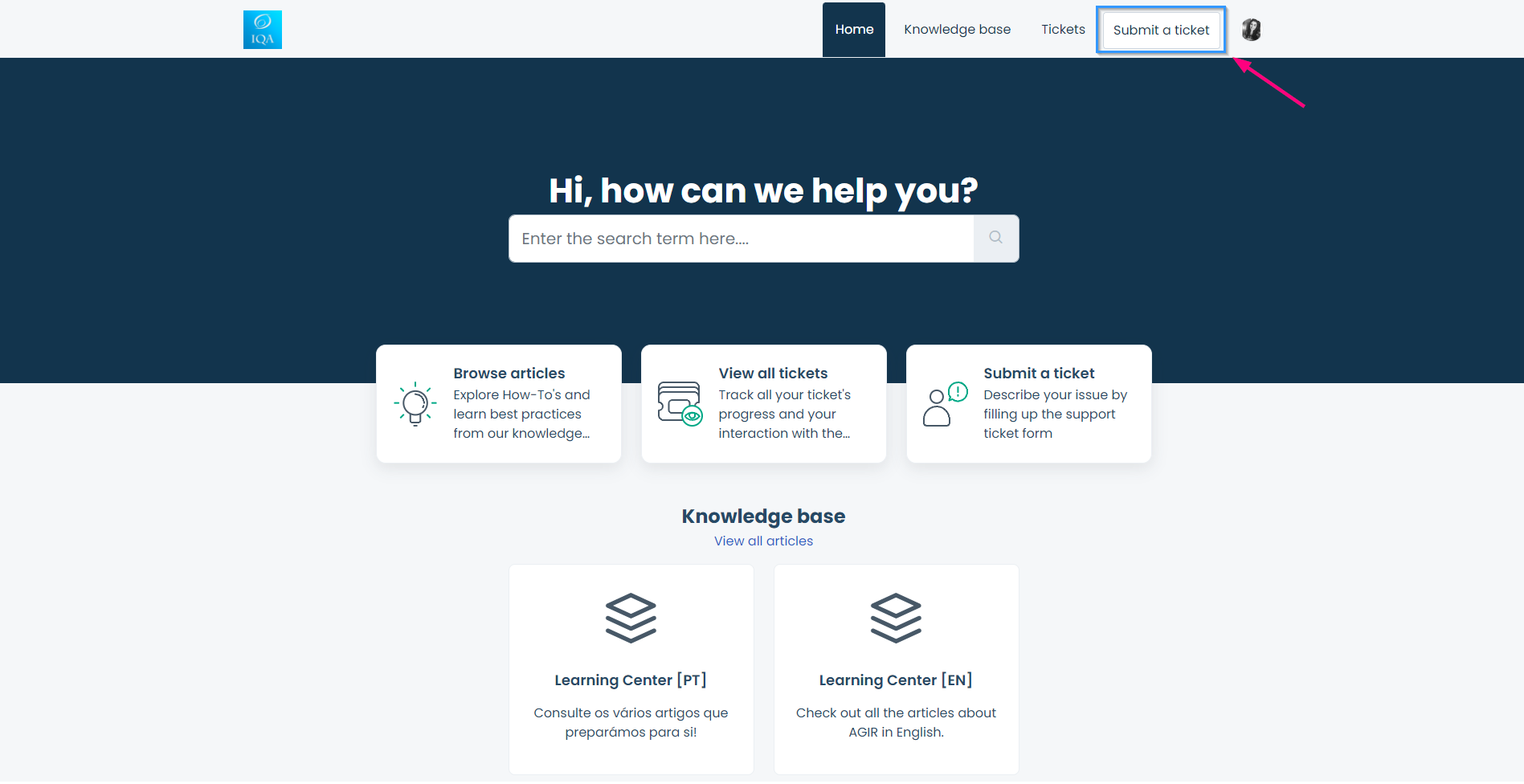
3. Click Submit a ticket.
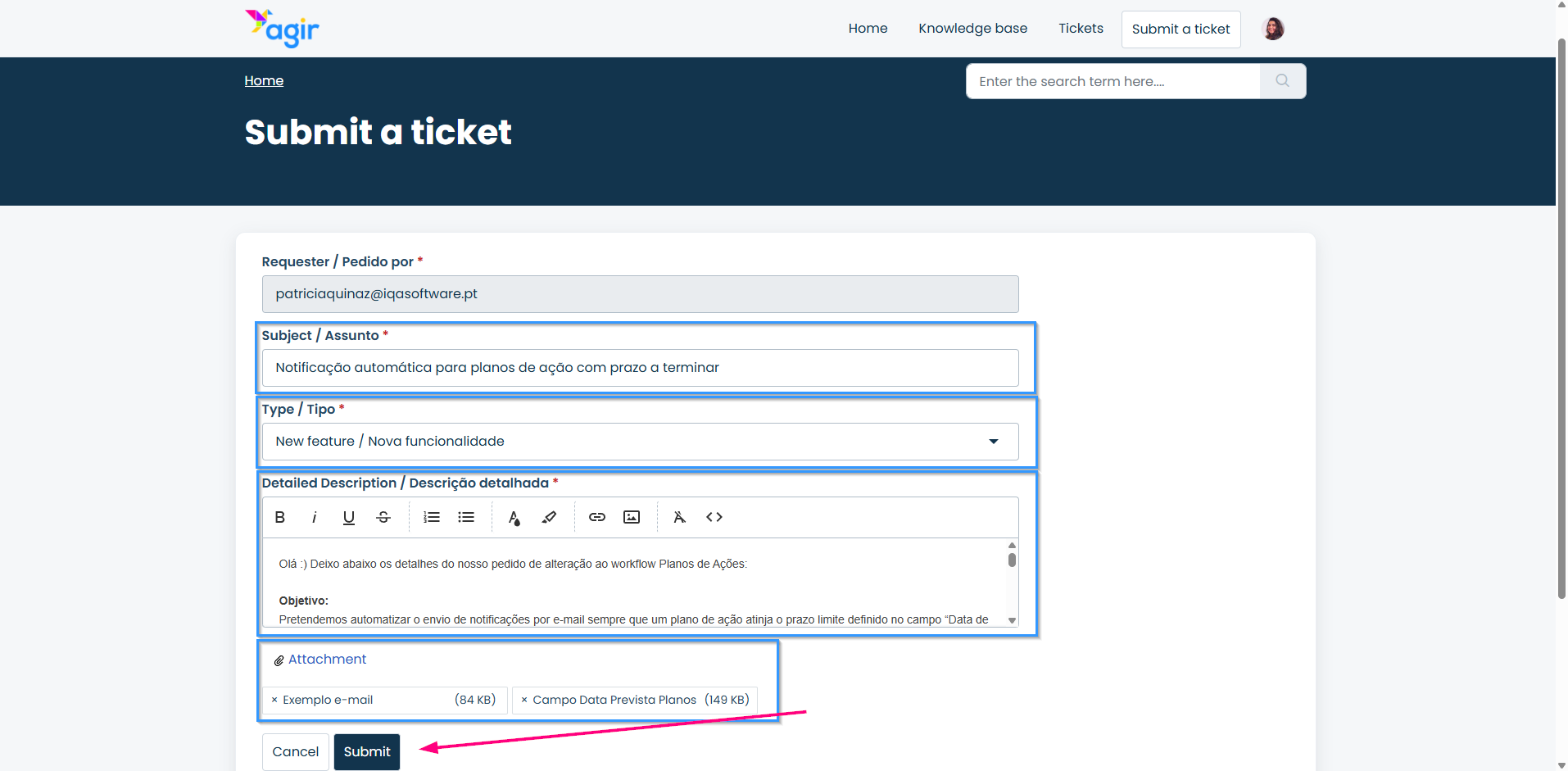
4. Fill in the ticket submission form: choose the Subject, set the type/category that best fits your request (Change request/New feature, for example), describe your request in detail, attach the relevant files and images and click Submit.
Follow-up
After submission, the request will be analyzed by the technical team, which may:
Ask additional questions to clarify the request;
Request validation of requirements with the client;
Plan the implementation according to priority and technical feasibility.
IMPORTANT Do not forget to reply directly on the portal, using the link provided at the end of our responses, and not directly to the notification emails.
Final note
A well-described development request speeds up the analysis and execution process, and reduces the number of message exchanges to clarify doubts.
The clearer and more detailed the request, the more effective our team's work will be.
Our team thanks you for your cooperation :)
Was this article helpful?
That’s Great!
Thank you for your feedback
Sorry! We couldn't be helpful
Thank you for your feedback
Feedback sent
We appreciate your effort and will try to fix the article